How to Play PC VR Games on a Quest: Link Cable, Air Link, Steam Link and Virtual Desktop
The four main ways to connect a Meta Quest to a gaming PC, what each needs, which stores they open, and how to fix the most common streaming problems.
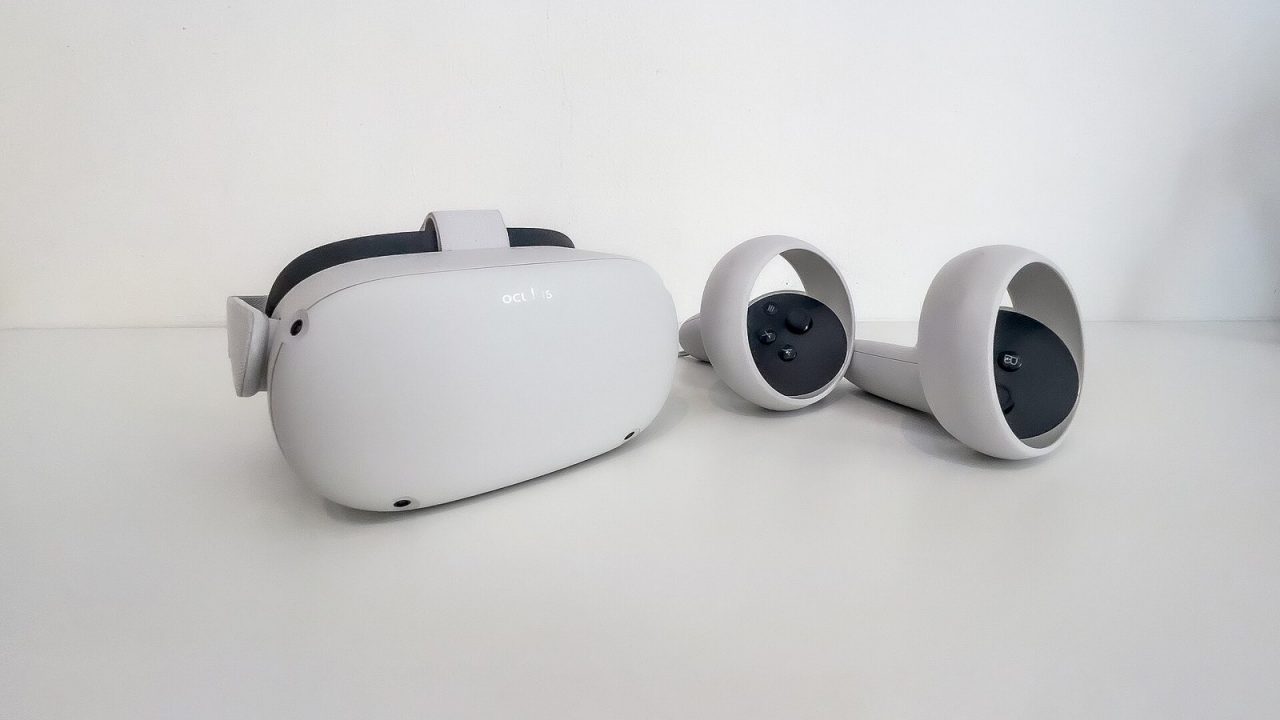
A Meta Quest is a standalone headset, but it does not have to stay one. Connect it to a capable Windows PC and it becomes a window into PC VR libraries on Steam and the Meta PC store, including games that will never run natively on a mobile chipset. There are four mainstream ways to make that connection, and they differ more than the marketing suggests: one uses a cable, three stream over Wi-Fi, and each opens a slightly different path to your games. This guide explains how they work, what you need, and how to choose.
How Quest-to-PC Play Works
When you play PC VR on a Quest, the game runs entirely on your computer. The PC renders each frame, compresses it as video, and sends it to the headset, which decodes and displays it. In the other direction, the headset sends head and controller tracking data back to the PC. All of this happens many times per second, so the quality of the link between the two devices matters as much as the power of the PC.
That leads to the core trade-off. A cable gives a stable, predictable connection. Wireless streaming removes the tether, which is a big deal for games that ask you to turn and move, but it depends on your home network. None of the methods is magic; each is a different way of carrying the same video stream.
If you are new to the distinction between standalone and PC-powered VR, our guide to standalone, PC and console VR covers the basics first.
Option 1: Meta Horizon Link With a USB-C Cable
The wired option is part of Meta’s own PC software. The Windows app has been renamed several times: it began as the Oculus PC app, became the Meta Quest Link app, and Meta’s current help pages call it Meta Horizon Link. Many guides still use the older names, so do not be confused if you see “Oculus Link” or “Quest Link” in older material.
What you need
- A Windows PC that meets Meta’s minimum requirements, with the Meta Horizon Link app installed.
- A Quest headset with up-to-date software.
- A USB-C cable that, in Meta’s words, “supports a minimum of 5 Gbps,” connected to a USB 3 port on the computer.
How to connect
- Plug the cable into the PC and the headset.
- In the headset, open Quick Settings from the Meta button menu and select Link.
- Choose your computer and select Launch.
You will land in Meta’s PC VR home environment, from where you can open Meta PC store games or launch SteamVR.
Strengths and weaknesses
The cable is the most consistent option, with no dependency on router quality or interference from neighbors. It also lets the headset draw power while you play, though depending on the port and cable, charging may only slow the battery drain rather than fully offset it. The downsides are obvious: a cable to trip over or tangle while turning, and a dependence on a long, good-quality cable. Cheap cables that only support USB 2 speeds are a common cause of poor results.
Option 2: Air Link
Air Link is Meta’s wireless version of the same system. It uses the same Meta Horizon Link app on the PC, so once connected, the experience looks identical to the cable: Meta’s PC environment, Meta PC store games and SteamVR.
What you need
- The Meta Horizon Link app on a capable Windows PC.
- A Wi-Fi network, with Meta recommending 5 GHz.
- In practice, a PC connected to the router by Ethernet, with the headset on Wi-Fi close to the router, gives the best results. This is the setup most streaming apps recommend.
How to connect
- Open Quick Settings, select Link and switch on Use Air Link.
- Pick your PC from the list and select Pair.
- Check that the code in the headset matches the code shown on the PC, confirm on the PC, then select Launch.
Air Link is a good default for owners who mostly play Meta PC titles or want an official, free wireless option without installing anything else.
Option 3: Steam Link for Quest
In late 2023, Valve released Steam Link as a free app in the Quest store. Instead of going through Meta’s PC software, it connects the headset directly to SteamVR on your computer. That means fewer layers of software for people who mainly play Steam games.
What Valve lists as requirements
- Steam and SteamVR installed on a Windows PC.
- A wired connection between the computer and the router.
- A 5 GHz Wi-Fi network for the headset, with Wi-Fi 6 or 6E recommended rather than required.
- A supported Quest headset with the Steam Link app installed.
Once connected, you see the SteamVR interface directly and can launch any SteamVR game in your library. Streaming happens over your local network.
When it suits you
Steam Link is attractive if Steam is your main library, since it avoids switching between Meta’s environment and SteamVR. It does not open Meta PC store games, so if you own titles there you will still use Link or Air Link for those. Because it is wireless, the network advice for Air Link applies equally.
Option 4: Virtual Desktop
Virtual Desktop is a paid third-party app sold on the Quest store. It started as a way to view your computer’s desktop inside VR and grew into one of the most popular wireless PC VR streaming tools.
How it works
You install the free Virtual Desktop Streamer app on your PC and sign in with the same account used to buy the app on Quest. From inside the headset, you can see your desktop on a large virtual screen, or open a games tab that lists SteamVR and Meta PC titles and launch them directly.
Requirements and features
- A VR-capable Windows PC for game streaming (desktop streaming also works on macOS).
- The PC wired to a 5 GHz Wi-Fi 5 or Wi-Fi 6 router, with the headset and PC on the same network. The developer warns that a VPN on the PC can block connections.
- A detailed set of streaming options, including codec, bitrate and quality presets, which experienced users like for fine-tuning.
Virtual Desktop is often chosen by people who want a single wireless tool that covers both their desktop and their VR games, and who are comfortable tweaking settings. Its downside, apart from the price, is that more options can mean more ways to misconfigure things.
Comparison at a Glance
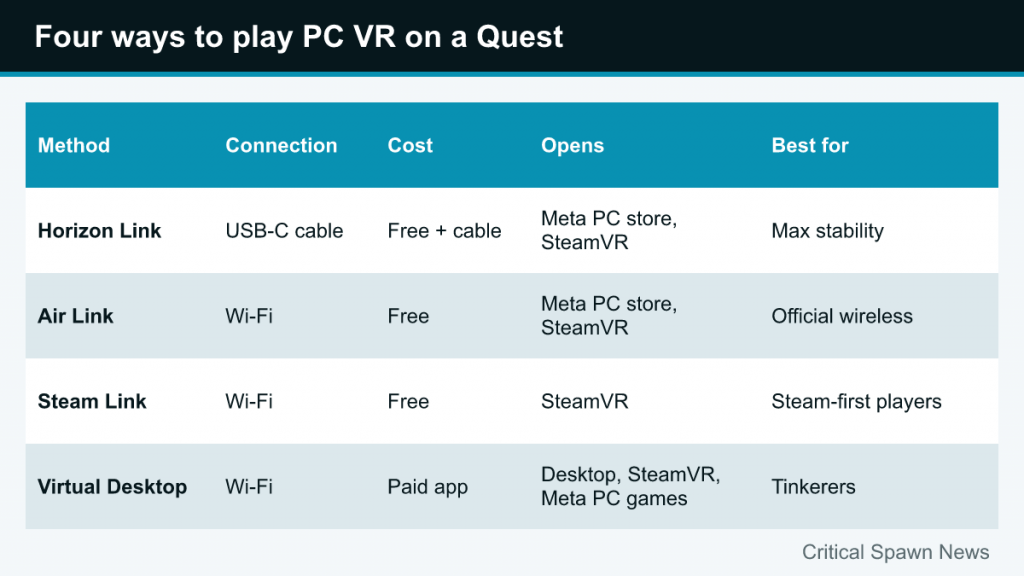
| Method | Connection | Cost | Opens | Best for |
|---|---|---|---|---|
| Meta Horizon Link (cable) | USB-C cable | Free software, cable needed | Meta PC store and SteamVR | Maximum stability, seated or stationary play |
| Air Link | Wi-Fi | Free | Meta PC store and SteamVR | Official wireless with no extra apps |
| Steam Link | Wi-Fi | Free | SteamVR | Steam-first players wanting a direct path |
| Virtual Desktop | Wi-Fi | Paid app | Desktop, SteamVR and Meta PC games | Tinkerers and desktop use in VR |
Getting Wireless Streaming Right
Most frustration with PC VR on a Quest comes from the network, not the PC. A few general principles help regardless of the app:
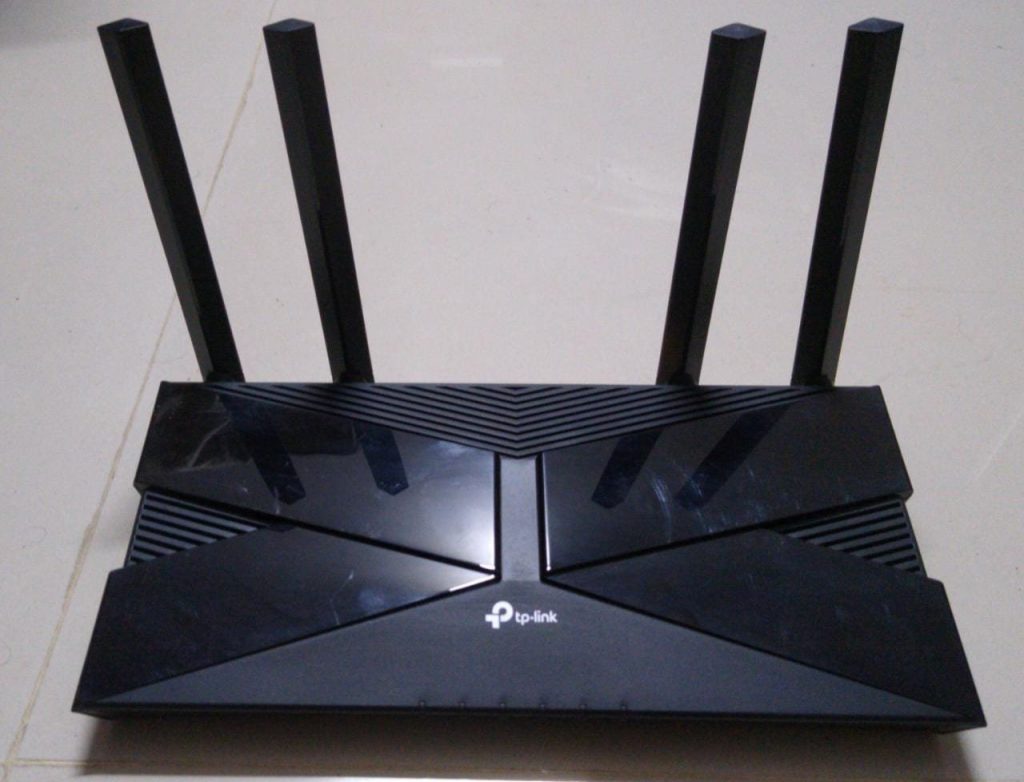
- Wire the PC. Every wireless method works best when the computer is connected to the router with Ethernet. If both the PC and the headset share Wi-Fi, the same airtime carries the stream twice.
- Use 5 GHz or newer bands. The 2.4 GHz band is generally too slow and congested for VR streaming.
- Keep the router close and visible. Ideally the router is in the same room as your play space, with a clear line of sight. Walls and floors reduce signal quality.
- Reduce competing traffic. Large downloads, video streams on other devices or a crowded neighborhood network can cause stutters.
- Some people use a dedicated router or access point just for VR, connected by cable to the PC. This is optional but solves many problems in busy homes.
Troubleshooting Common Problems
The headset does not see the PC
Check that both devices are on the same network, that the PC app (Meta Horizon Link, SteamVR or the Virtual Desktop Streamer) is running, and that a firewall or VPN is not blocking it. For the cable, try a different USB port, preferably directly on the motherboard rather than a front-panel hub.
Stuttering, artifacts or blurry images
Lower the streaming bitrate or the game’s graphics settings first. Blocky compression during fast movement usually points to network limits; consistent low frame rates usually point to the PC struggling with the game itself. Move the router closer or switch to the cable to test which it is.
Link works but SteamVR games do not start
Make sure SteamVR is installed and updated, and that you launch it after the link session starts. If you use Meta’s Link software, Meta’s PC app must also be allowed to run content from sources outside its own store; check the app’s settings for that option.
Battery drains quickly
Wireless streaming is demanding on the headset’s battery. Plan shorter sessions, use a battery strap if your headset supports one, or switch to the cable for long games.
Which Method Should You Use?
A sensible starting point for most people is to try Air Link or Steam Link first, since both are free, then fall back to the cable if your network cannot keep up. If your library is mostly on Steam, Steam Link avoids extra software. If you own Meta PC titles, Link and Air Link are the natural fit. If you want the most control or regularly use your desktop in VR, Virtual Desktop is worth a look.
Many players end up using more than one. A cable for long, demanding sessions and wireless for active games is a common combination, and nothing stops you from switching between them. This is also how many Quest owners play landmark PC titles such as Half-Life: Alyx, which requires a PC VR connection to run on a Quest.
Finally, remember that comfort habits still apply. Wireless play makes it easier to move freely, so check your boundary carefully before each session, and keep the usual safety basics from our Quest setup guide in mind.