VR Comfort Settings Explained: Snap Turn, Teleport, Vignettes and Seated Mode
What each common VR comfort option does, from teleport and snap turning to vignettes and seated mode, and how to loosen them as your tolerance grows.
Open the settings menu of almost any VR game and you will find a cluster of options with names like “snap turn,” “vignette strength” and “locomotion type.” To someone new to VR they can look like technical clutter. In practice, they are the most important settings in the game, because they decide whether a session ends with a grin or a queasy stomach.
This guide explains what each common comfort setting does, why it helps, and how to combine them. It also covers how stores label games for comfort, so you can make good choices before you buy.
Why comfort settings exist
Most VR discomfort comes from a mismatch: your eyes see movement that your inner ear does not feel. When you physically walk around a room in VR, eyes and body agree, and most people feel fine. When a game moves you through the world with a thumbstick, your eyes report motion while your body reports standing still, and for many people that conflict causes nausea, sweating or dizziness. Our explainer on VR motion sickness covers this in more detail.
Comfort settings reduce that conflict in different ways: by removing artificial motion entirely, by making it instantaneous rather than continuous, or by reducing how much of it you see. Sensitivity varies a lot between people, which is why most games offer a range of options instead of a single “correct” setup.
Movement: teleport vs smooth locomotion
Teleport
With teleport movement, you point at a spot on the ground, usually with an arc or a beam from your controller, and release to appear there instantly or after a quick fade. Because you never see yourself glide through space, there is very little visual motion for your inner ear to disagree with. Teleport is the most comfortable way to cover distance in VR, and many games offer it as the default for new players.
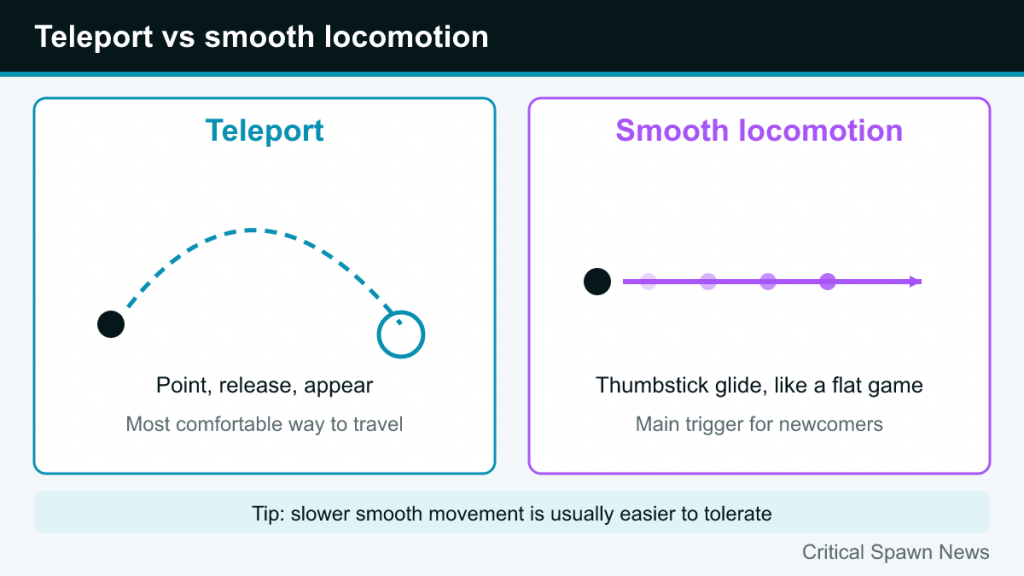
The trade-off is immersion and flow. Teleporting can feel less natural, and in some games it makes movement-heavy tasks clumsier. Some games use variations such as “dash,” which moves you very quickly along a line rather than instantly, or “shift,” which briefly fades the screen.
Smooth locomotion
Smooth locomotion (sometimes called continuous or free movement) moves you through the world with the thumbstick, like a standard video game. It feels more natural for many experienced players and allows precise movement, but it is the main cause of VR discomfort for newcomers. Games often let you adjust its speed; slower speeds are usually easier to tolerate.
Head-oriented vs hand-oriented movement
Many games with smooth locomotion let you choose which direction counts as “forward”:
- Head-oriented: pushing forward moves you in the direction you are looking.
- Hand- or controller-oriented: pushing forward moves you in the direction your controller points, so you can look around while walking in a straight line.
Neither is more comfortable for everyone, so it is worth trying both.
Turning: snap vs smooth
Turning is a separate setting from movement, and for many people it matters even more. Rotating your view while your body stays still is particularly disorienting.
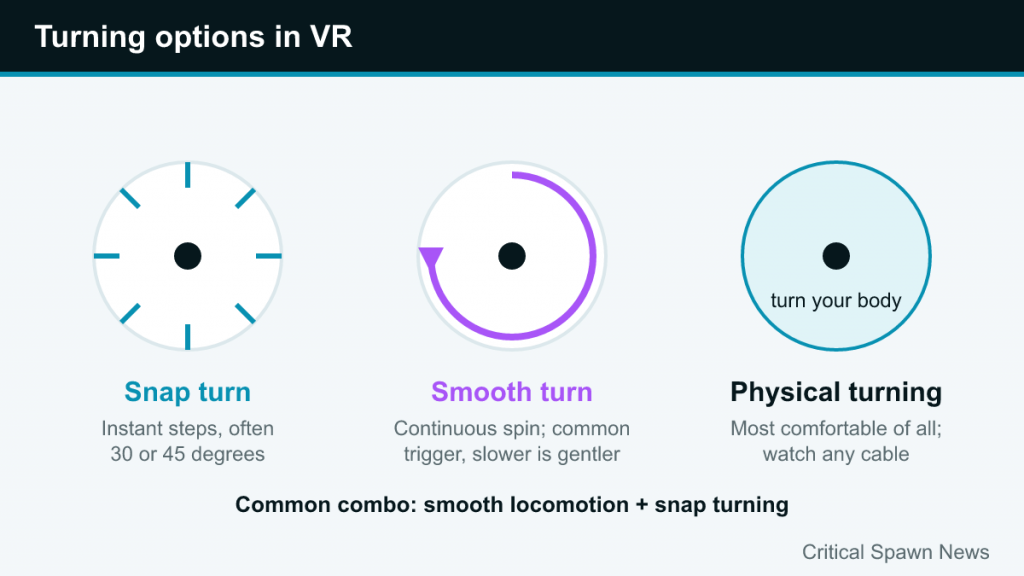
- Snap turn rotates your view instantly in fixed steps, often 30 or 45 degrees, each time you flick the thumbstick. You never see the world spin, which most people find far more comfortable.
- Smooth turn rotates your view continuously while you hold the stick. It feels more fluid but is one of the most common triggers of discomfort. If a game offers a turn speed setting, slower is gentler.
- Physical turning is the most comfortable of all: simply turn your body. In standing play with a wireless headset, this can replace stick turning entirely. Seated players can use a swivel chair, but watch any headset cable.
Many players use smooth locomotion with snap turning, because turning tends to be the bigger trigger. Snap angles are often adjustable; smaller increments feel smoother but involve more flicks.
Vignettes and tunneling
A comfort vignette (also called tunneling, blinders or field-of-view reduction) darkens or blurs the edges of your view while you move artificially, then fades away when you stop. Peripheral vision is particularly sensitive to motion, so limiting what you see at the edges reduces the sensory conflict.
Common options include:
- Strength or size: how much of the view is covered. Stronger vignettes are more comfortable but feel more restrictive.
- When it activates: during movement, during turning, or both.
- Style: plain black edges, a blurred edge, or a “cage” or grid that gives your eyes a stable reference.
Vignettes are one of the best tools for transitioning from teleport to smooth locomotion: start with a strong vignette, then reduce it over several sessions.
Seated mode, height and standing reference
Seated mode
Many games offer a seated mode that raises your virtual height so you are not playing from waist level, and sometimes lets you reach the floor or high shelves with a button. Playing seated can itself reduce discomfort for some people, since a chair gives your body a stable reference and removes balance worries. It is also practical in small spaces. On headsets with a stationary boundary option, such as the Quest, choose stationary mode for seated play.
Height calibration
If your virtual body seems too tall or too short, or the floor looks wrong, look for a height calibration or “reset height” option. Some games ask you to stand up straight and press a button; others let you enter your height. A floor at the wrong level can feel subtly unsettling, so this is worth fixing. If the floor level is wrong across all games, recalibrate it in the headset’s own boundary settings.
Recenter
Most headsets and games let you recenter your view, resetting which direction counts as forward. Holding the system button on the controller does this on many headsets. It is useful if you have shifted position in your chair or if the game started facing the wrong way.
Dominant hand and other accessibility options
Comfort is not only about nausea. Several settings make VR physically easier and more accessible:
- Dominant hand: swaps which hand handles movement, turning and primary actions. Left-handed players should check this early.
- Movement hand: choose which thumbstick controls movement and which controls turning.
- Grab mode: toggle grip (press once to hold, press again to release) rather than holding the grip button down, which reduces hand fatigue.
- Subtitles and visual cues: helpful if you play with the volume low or are hard of hearing.
- Reduced effects: some games let you turn off camera shake, flashing lights or screen effects.
System-level accessibility menus on headsets also offer options such as color correction and mono audio. On a Quest, Meta’s setup flow points to accessibility settings early on; our Quest setup guide shows where to find them.
How stores label comfort
Store comfort labels are the quickest way to judge a game before you play it. On the Meta Horizon Store, Meta assigns one of four comfort ratings as of 2026:
| Rating | Meta’s description |
|---|---|
| Comfortable | Appropriate for most people; generally avoids camera movement, player motion, or disorienting content and effects |
| Moderate | Appropriate for many but not everyone; might include some camera movement, player motion, or occasionally disorienting content |
| Intense | Not appropriate for most people, especially those new to Meta Quest |
| Unrated | May contain intense content that may not be right for most people |
Meta notes that the rating reflects a game’s default settings, so a game rated Moderate or Intense may become more comfortable once you switch on teleport, snap turn and vignettes. In the Meta Horizon mobile app, the comfort rating appears below the age rating on a game’s page; in the headset, it is under More Information. Meta recommends starting with Comfortable titles before trying higher ratings.
Other storefronts handle this differently. On PlayStation VR2, game pages list supported play styles (sitting, standing, roomscale), which helps with space planning but is not a comfort rating. On Steam, check the game description and reviews for comfort options. Our list of beginner-friendly VR games focuses on titles that are comfortable by design.
A progression plan as your tolerance grows
Many people find they become more comfortable with artificial movement over time, which players call “getting your VR legs.” There is no fixed timeline, and some people always prefer the gentlest settings, which is perfectly fine. A gradual approach looks like this:
- Start fully comfortable: stationary or teleport games, snap turning, short sessions.
- Add smooth movement at low speed with a strong vignette and snap turning, in short bursts.
- Reduce the vignette gradually over several sessions if you feel fine.
- Try smooth turning last, if at all. Many experienced players never switch to it.
The golden rule throughout: stop at the first sign of discomfort and do not try to “push through.” Symptoms can linger after you take the headset off, and pushing on tends to make the next session harder, not easier. Sitting somewhere cool or using a fan to create airflow while playing helps some people. If you have persistent or severe symptoms, consult a medical professional.
Recommended starting presets
| Setting | New to VR | Some experience | Comfortable with most games |
|---|---|---|---|
| Movement | Teleport | Smooth, low speed | Smooth, your preferred speed |
| Turning | Snap, 30–45 degrees | Snap | Snap or smooth |
| Vignette | Strong or on | Medium | Low or off |
| Position | Seated or stationary | Standing | Standing or roomscale |
| Session length | 15–30 minutes | Longer with breaks | As comfortable, with breaks |
Treat these as starting points, not rules. The right settings are simply the ones that let you keep playing comfortably.