How to Fit a VR Headset Properly: Straps, IPD and Getting a Clear Image
Find the lens sweet spot, set straps so the weight sits right, adjust IPD on Quest and PS VR2, and fix blurry text for clearer, more comfortable VR.
A surprising number of complaints about VR, from blurry text to sore cheeks to headaches after twenty minutes, come down to one thing: the headset is not sitting correctly. VR lenses have a small area where the image is sharpest, and if your eyes are not lined up with it, no amount of graphical power will help. The good news is that a correct fit takes only a minute or two once you know what to adjust. This guide walks through the sweet spot, strap positioning, interpupillary distance (IPD) and the most common reasons the picture looks soft.
Why Fit Matters So Much in VR
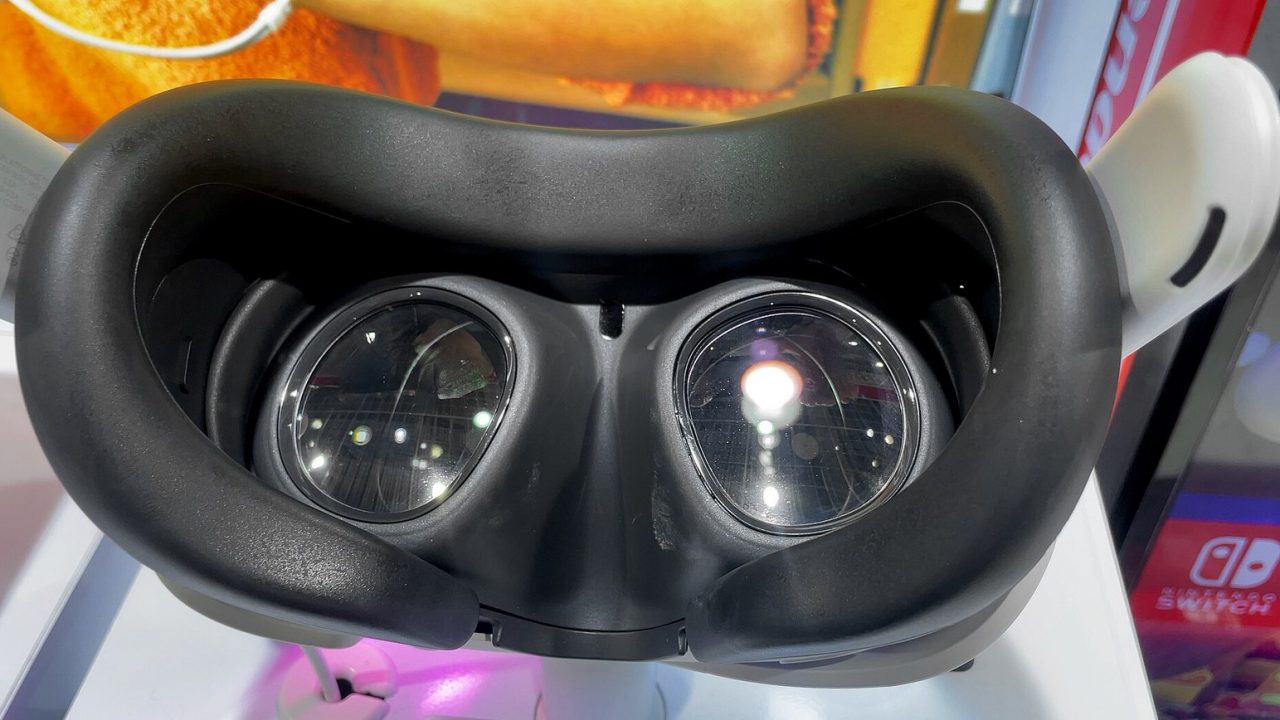
Unlike a TV, a VR headset puts a small display a few centimeters from your eyes and uses lenses to make it look like a large, distant image. Those lenses are designed for your eye to sit in a specific position: centered horizontally, at a particular distance from the lens surface, and looking through the optical center. Move away from that position and the image degrades. Text becomes fuzzy, edges show color fringing, and you may notice glare or “god rays” from bright objects.
There are three things to get right:
- Vertical position: the lenses should be at the height of your eyes, not above or below them.
- Horizontal spacing (IPD): the distance between the lens centers should match the distance between your pupils as closely as the headset allows.
- Depth (eye relief): how close the lenses are to your eyes. Closer usually means a wider field of view, but you need room for eyelashes and, if you wear them, glasses.
Straps do not directly change the image, but they determine whether the headset stays in the right position once you find it.
Finding the Lens Sweet Spot
The “sweet spot” is the region of the lens where the image is sharpest. On most headsets it is not large, so small adjustments make visible differences. A simple method works on any headset:
- Loosen the straps before putting the headset on.
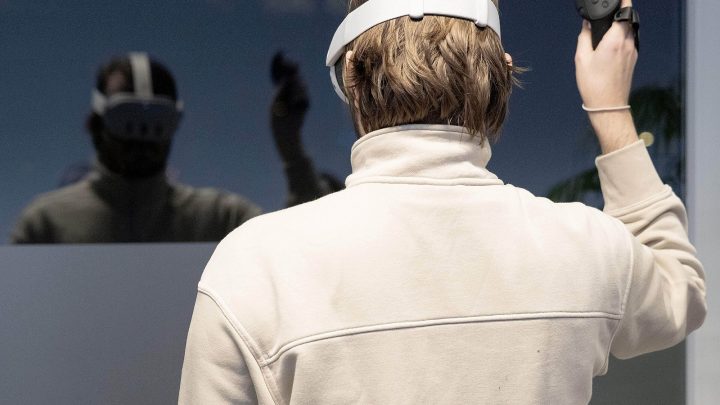
- Bring the headset to your face first, then pull the strap over the back of your head. Putting the strap on first tends to drag the headset down your face.
- Look at something with fine text, such as a menu or a settings panel.
- Holding the headset with one hand, slide it slightly up and down on your face and tilt it a little until the text is sharpest.
- Keeping it in that position, tighten the straps.
Look straight ahead with your eyes rather than glancing around with them. VR lenses are designed for you to turn your head, and looking at the edges of the lens with your eyes alone will always look softer than the center. That is normal and not a fitting problem.
Strap Positioning: Where the Weight Should Go
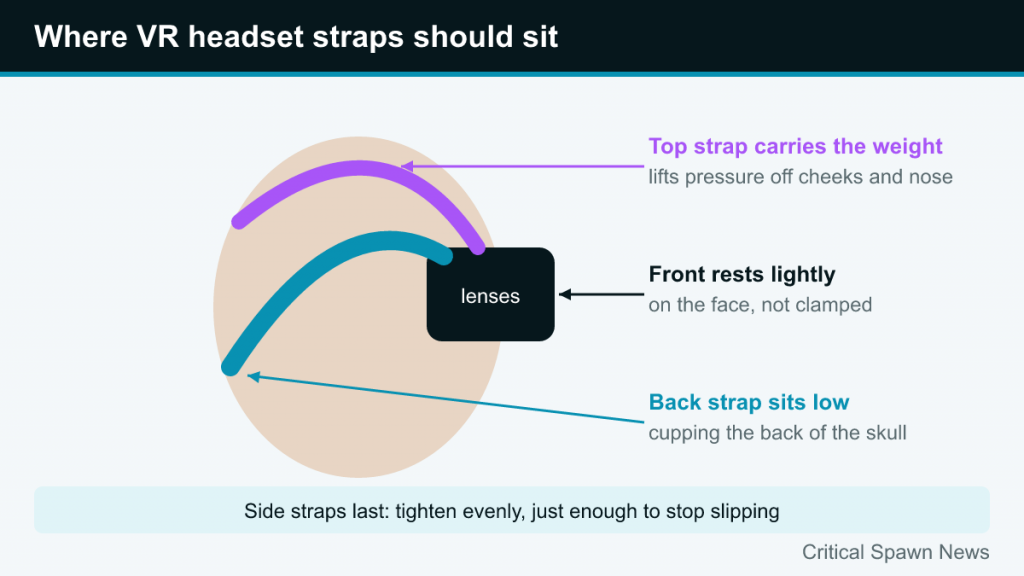
Most discomfort comes from the headset pressing on the face. The aim is to distribute weight across the head so the front rests lightly against your face rather than being clamped to it.
Back strap low on the skull
The rear part of the strap should sit low on the back of the head, cupping the bump of the skull (the occipital area) rather than sitting high on the crown. Sitting low gives it something to grip, which prevents the headset from sliding down. Sony’s PS VR2 fitting guide gives the same advice in its own terms: keep the headband close to your ears, and do not wear it high on your head, because the headset will not be stable there.
Top strap carrying the weight
If your headset has a top strap, use it to lift the weight of the front off your cheeks and nose. Tighten it until the pressure on your face eases, but not so much that the lenses ride above your eyes. On headsets with a halo-style band, like PS VR2, the band itself takes this role by resting on the forehead and back of the head.
Side straps last
On headsets with side adjustments, tighten them evenly just enough to stop the headset moving when you shake your head gently. Over-tightening is the most common mistake; it causes red marks, pressure headaches and, ironically, can push the lenses out of alignment.
Comfort accessories
Many players replace the stock soft strap with a rigid “elite”-style or halo strap, some with a battery in the back that also acts as a counterweight. Meta, Sony and third-party makers offer various options. Counterweighting can make a significant difference to front-heavy headsets in longer sessions. Check compatibility with your exact headset model before buying any accessory.
Understanding and Setting IPD
Interpupillary distance (IPD) is the distance between the centers of your pupils, usually measured in millimeters. Headsets let you change the spacing of the lenses so their optical centers line up with your pupils. There are three common approaches:
| Type | How it works | Example |
|---|---|---|
| Stepped | Lenses click into a few fixed positions | Meta Quest 3S: 58, 63 and 68 mm |
| Continuous (mechanical) | A wheel or dial moves the lenses smoothly across a range | Meta Quest 3 (53–75 mm range); PS VR2 lens adjustment dial |
| Software only | Lenses are fixed; software shifts the image slightly | Some older or budget headsets |
Software-only adjustment can help a little, but it cannot move the physical sweet spot, so mechanical adjustment is generally better for people far from the average.
Measuring your IPD
The most accurate measurement comes from an optometrist or optician, who can measure it during an eye exam. Meta’s own help article also describes a home method: stand in front of a mirror with a millimeter ruler held above your eyes, close one eye, line up the zero mark with the center of your open eye’s pupil, then open the other eye and read the measurement at the center of its pupil. It is easier with a friend.
Setting IPD on Meta Quest headsets
Meta states that its Quest headsets accommodate IPDs from 56 to 70 mm, which it says covers about 95 percent of adults. For headsets with three positions, Meta’s guidance is:
- IPD of about 61 mm or less: position 1 (58 mm)
- About 61 to 66 mm: position 2 (63 mm)
- About 66 mm or more: position 3 (68 mm)
Quest 3 instead has a lens adjustment wheel on the bottom left of the headset that moves the lenses continuously; turn it until the image is clearest. Quest 3 also has depth adjustment buttons beside the lenses that let you move the facial interface closer or further away, which helps both with field of view and glasses clearance. Our Quest setup guide covers where this fits into the first-time setup.
Setting IPD on PS VR2
PS VR2 has a lens adjustment dial that changes the distance between the lenses, and a scope adjustment button that moves the front of the headset closer or further from your face. The PS5 offers on-screen guidance: from the PlayStation VR2 card in the Control Center, select Adjust Visibility, and the headset’s eye tracking helps you line up the lenses. Our PS VR2 explainer covers the rest of its setup.
Trust your eyes, not just the number
A measured IPD is a starting point. Small differences in face shape and how the headset sits mean the clearest setting may be slightly different. Adjust while looking at text, and pick the position that looks sharpest and feels comfortable.
Why Text Looks Blurry, and How to Fix It
If the image is soft, work through the likely causes in order:
- Headset too high or low. The most common cause. Re-seat it using the sweet spot method above.
- Wrong IPD setting. Try each position or sweep the dial while reading text.
- Dirty lenses. Fingerprints, skin oil and dust smear the image. Clean with a dry microfiber cloth in gentle circles from the center outward. Manufacturers advise against liquids, alcohol or abrasive cloths on the lenses.
- Fogging. Lenses can fog when a cold headset meets a warm face. Let the headset warm to room temperature, and keep airflow going with a fan.
- Lenses too far away. If your headset has depth adjustment, try moving the lenses closer (while leaving room for glasses if you wear them).
- Your own vision. If you normally need glasses for distance, VR can look blurry without correction. Headsets generally have a fixed focal distance (Sony gives approximately 2 meters for PS VR2), so your distance prescription is usually what matters.
- Rendering, not optics. If everything looks clean but low-detail, the issue may be the game’s resolution or a streaming setting rather than fit.
Some softness at the edge of the lenses, plus glare around bright objects on dark backgrounds, are characteristics of the optics. Pancake lenses, used in headsets such as Quest 3, generally have a wider sweet spot than the Fresnel lenses used in Quest 3S and PS VR2, which is one reason fit is more forgiving on some headsets than others.
Glasses and Vision Considerations
Many headsets can be worn over glasses, usually with a spacer or depth adjustment. Sony states that you can keep your glasses on while wearing PS VR2. The usual advice is to put the headset on from the front, carefully, so frames do not scratch the lenses. Large or wide frames may not fit at all. Prescription lens inserts are another option; we will cover glasses, spacers and inserts in more detail in a dedicated article. For any question about your own eyesight, including whether your prescription is up to date, consult an eye care professional.
Comfort for Longer Sessions
- Re-check the fit after a few minutes. Straps settle and hair compresses. A small readjustment often helps.
- Loosen rather than tighten. If your face hurts, the answer is usually better weight distribution, not more tension.
- Consider the face interface. Replacement interfaces in different shapes and materials can change pressure points and how close the lenses sit.
- Take breaks. Remove the headset regularly to rest your eyes, face and neck. Headsets also trap heat, which makes breaks even more welcome.
- Stop if you feel unwell. Eye strain, headaches or nausea are signals to take a break. Our guide to VR motion sickness explains the difference between discomfort from movement and discomfort from fit.
Quick Fit Checklist
- Clean the lenses with a dry microfiber cloth.
- Loosen all straps.
- Headset to face first, then strap over the head.
- Back strap low on the skull, close to the ears.
- Find the sharpest position by moving the headset up and down.
- Top strap or band carries the weight.
- Set IPD while reading text.
- Adjust depth if available.
- Tighten side straps just enough to stop wobble.
Once you have done it a few times, the whole routine takes under a minute, and the difference between a well-fitted and a badly fitted headset is often bigger than the difference between headset generations.