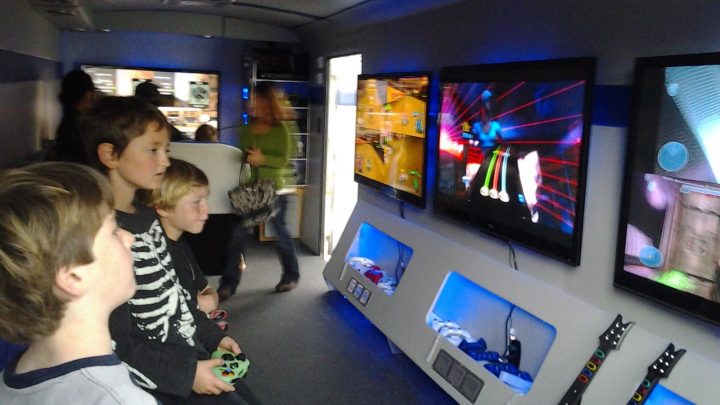
Controllers for Couch Co-op: How Many You Need and How to Pair Them on Every Platform
How many controllers you need for couch co-op, how to pair extra pads on PS5, Xbox, Switch, Switch 2 and PC, guest profiles, and charging tips for game night.
The game is installed, friends are on the sofa, and then the familiar question: does the second controller work? Couch co-op lives or dies on the boring details, such as how many pads you have, whether they are paired, whether they are charged and which profile each player is using. This guide covers the practical side of getting two to four (or more) players connected on PlayStation 5, Xbox Series X|S, Nintendo Switch and Switch 2, and PC, plus a few habits that keep a game night running smoothly.
How Many Controllers Do You Actually Need?
Start with the game, not the console. Check the local player count on the game’s store page, because “multiplayer” often refers to online play. A few general rules:
- One controller per local player is the norm on PlayStation, Xbox and PC.
- On Nintendo consoles, a pair of Joy-Con can often serve two players, each holding one sideways, if the game supports that grip.
- Phone-controlled party games need no extra controllers at all. Players join with their phones through a web browser.
- Turn-based or pass-the-controller games can work with a single pad.
Plan for one spare. Batteries die, and a guest may prefer a different controller layout. If you are hosting a larger group, our guide to planning a video game party night covers rotation systems that let more people play than you have controllers.
It also helps to know the platform limits:
| Platform | Controller limit (per manufacturer) | Notes |
|---|---|---|
| PS5 | Up to 4 controllers at the same time | Each player gets a light color when pressing the PS button |
| Xbox Series X|S | Up to 8 wireless controllers | Pair button on console and controller |
| Nintendo Switch 2 | Up to 8 wireless controllers can be paired | Actual simultaneous number depends on controller types and features used |
| PC | Depends on hardware and game | Steam Input handles many controller brands |
Most couch co-op games top out at two or four players anyway, so these limits rarely matter in practice.
PlayStation 5
Pairing the first controller
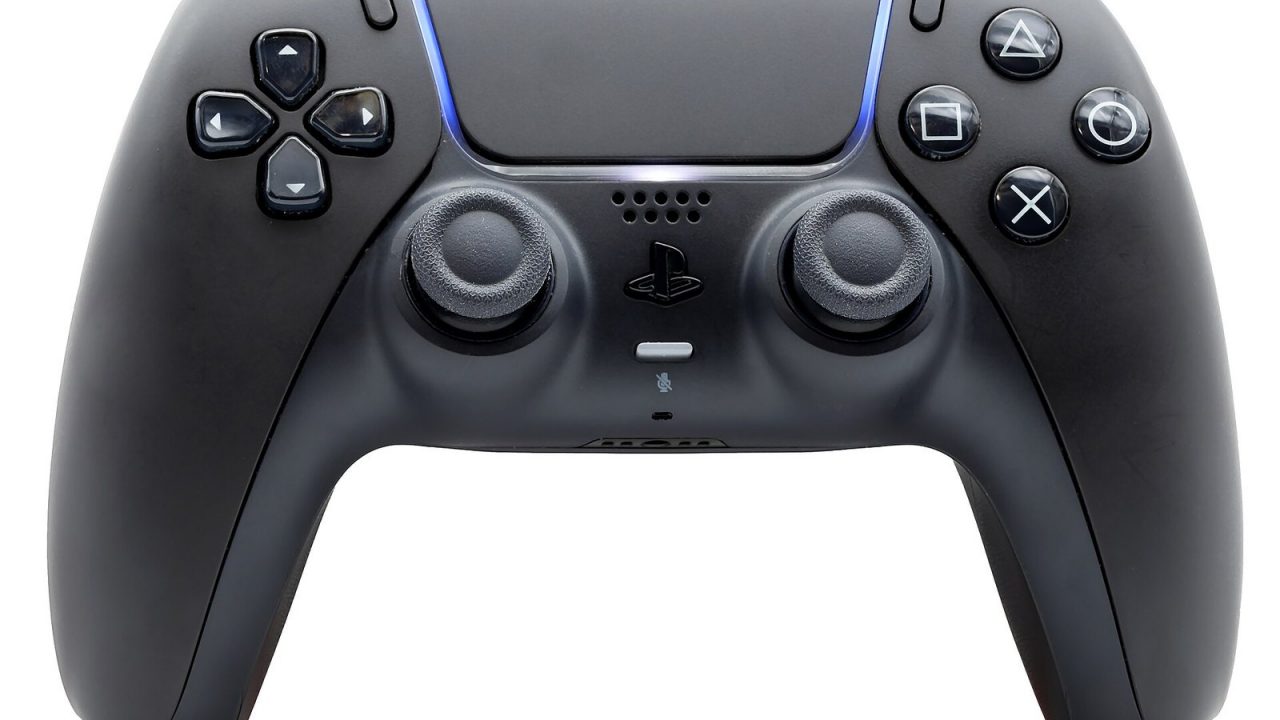
The first DualSense pairs by cable: connect it to the console with a USB cable and press the PS button. The light bar blinks and the player indicator lights up when it is paired.
Adding a second (or third, or fourth) controller
Sony’s support instructions for adding controllers wirelessly:
- Make sure the new controller is not connected by USB and its player indicator is off. If it is lit, hold the PS button until it turns off.
- On the first controller, go to Settings > Accessories > General > Bluetooth Accessories.
- On the new controller, press and hold the Create button and the PS button together until the light bar blinks.
- Select the new controller on screen using the first controller.
The simplest alternative is to plug the new controller in with a USB cable and press the PS button, which pairs it immediately.
Profiles and guests
When an additional player presses the PS button, the console asks who is using the controller. Players can choose their own account if it exists on the console, or play as a guest. Guests can play local co-op, but trophies and saves typically belong to the signed-in account that owns the save. Check each game’s handling of second-player progress, since some games track only the host’s progress.
Older controllers
DualShock 4 controllers can be used on PS5 to play PS4 games. For PS5 games, a DualSense is generally required, so check before relying on old pads.
Xbox Series X|S
Wireless pairing
- Turn on the console and press the Pair button on the console.
- Within about 20 seconds, press and hold the Pair button on the top of the controller until the Xbox button flashes quickly.
- When the Xbox button stays lit, the controller is connected.
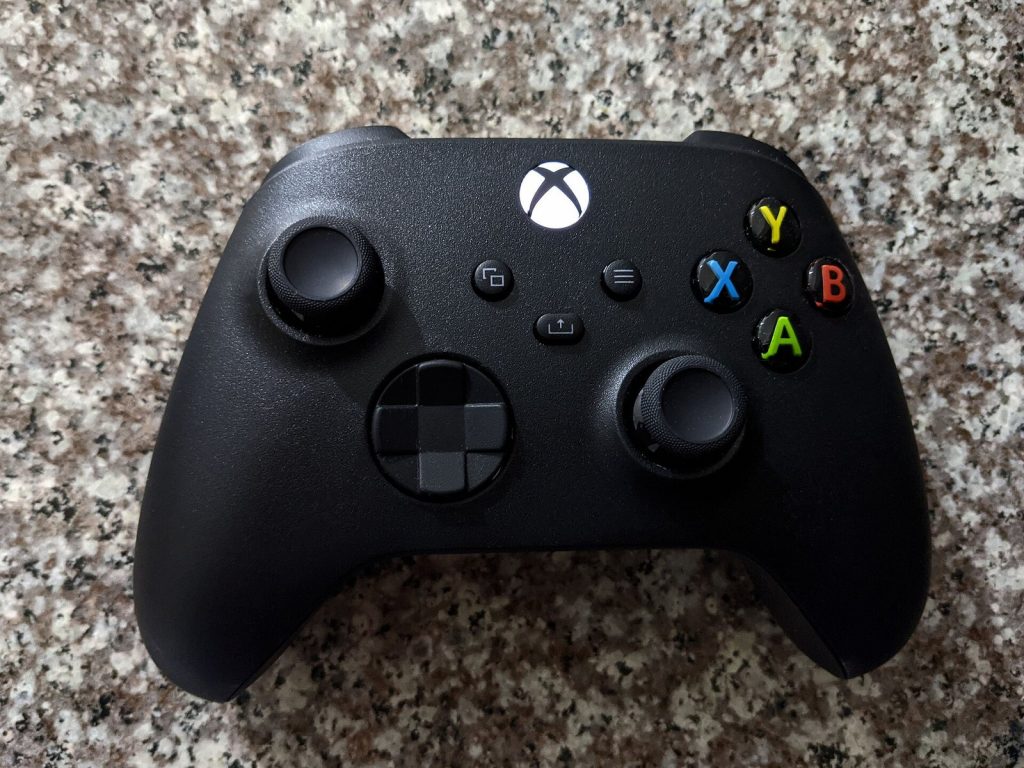
You can also connect a controller by USB cable, which pairs it automatically. Xbox Wireless Controllers from the Xbox One generation also work on Series X|S, which makes it easy to build a set of controllers over time.
Profiles and guests
Each controller can be assigned to a signed-in profile or used by a guest. When a second player presses the Xbox button, they can sign in or add a guest from the profile menu. Some games require a profile for the second player to save progress or use online features, so it is worth checking before a long session.
Batteries
Standard Xbox controllers run on AA batteries or optional rechargeable packs. If you host often, a set of rechargeable AAs or play-and-charge kits avoids the mid-game hunt for batteries.
Nintendo Switch and Switch 2
Nintendo’s consoles are designed around local multiplayer, and the Joy-Con make it possible to start a two-player game with the controllers already in the box.
Pairing controllers
- From the HOME Menu, select Controllers, then Change Grip/Order.
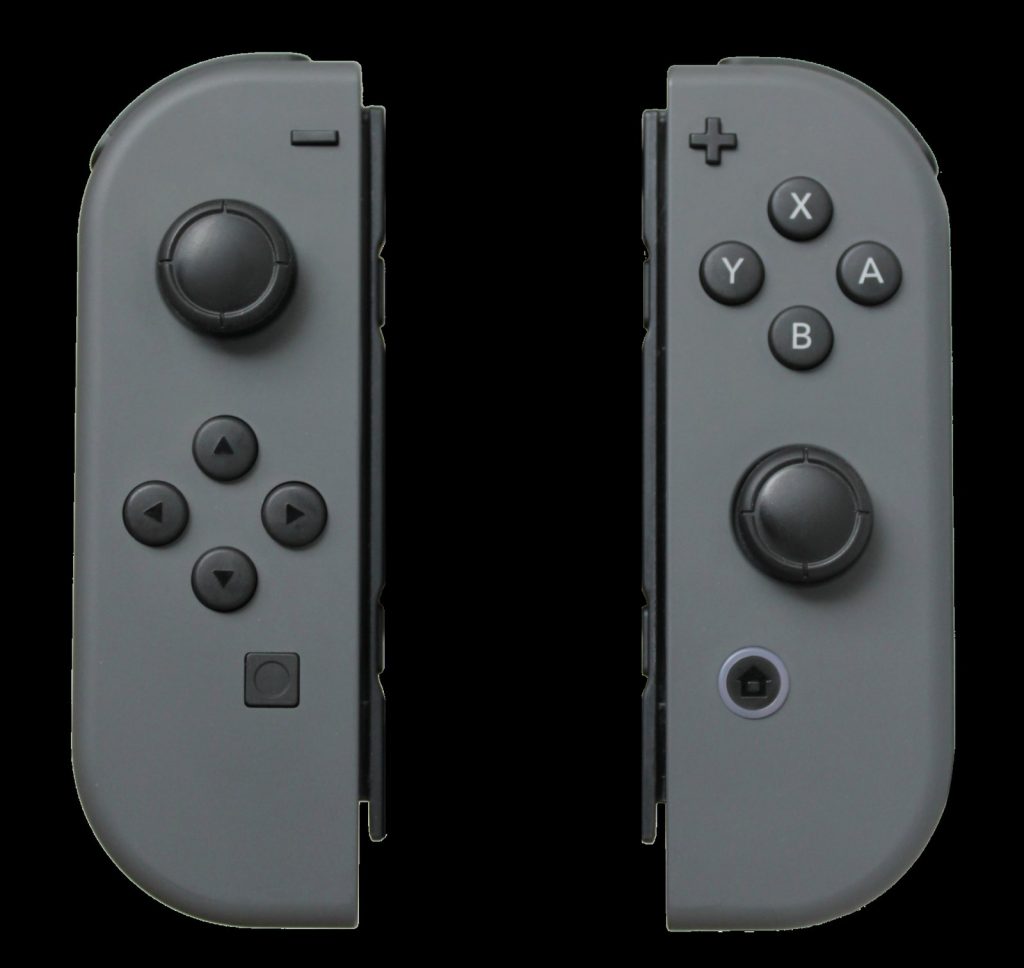
- For wireless controllers, press and hold the SYNC button on the controller for at least a second to pair it.
- Attaching Joy-Con to the console also pairs them.
Nintendo notes that wireless controllers paired to the console are temporarily disconnected while you are on the Change Grip/Order screen.
Sharing a pair of Joy-Con
To use a single Joy-Con sideways, go to Change Grip/Order and press the SL and SR buttons on each Joy-Con you want to use horizontally. For two vertical Joy-Con held as one controller, press L and R (or ZL and ZR). This is how two people can play from one set.
A sideways Joy-Con has fewer buttons and a single stick, so it suits simpler games. Nintendo also points out that each game decides which grips it supports, and some games only allow sideways Joy-Con in multiplayer modes. For longer or more complex co-op games, a full controller per player is more comfortable.
Switch 2 notes
Switch 2 uses the same Change Grip/Order process with its Joy-Con 2 controllers, and Nintendo says up to eight wireless controllers can be paired, though the number that can be connected at once varies with controller types and features in use. If you are carrying over older controllers, check Nintendo’s compatibility notes for the specific controller and game.
Profiles
Nintendo games usually save progress to the user who started the game, and the second player participates without needing their own account. Some games allow choosing a user per player.
PC: Mixed Brands and Steam Input
PC couch co-op is flexible but can be messier, because controllers from different brands report themselves differently and games support them unevenly.
Connecting controllers
- USB cable is the most reliable option for most controllers.
- Bluetooth works for many modern controllers, including DualSense and recent Xbox controllers. Put the controller in pairing mode and add it through Windows Bluetooth settings.
- Xbox Wireless Adapter lets multiple Xbox controllers connect without Bluetooth.
Steam Input
Steam includes a controller layer called Steam Input that recognizes PlayStation, Xbox, Nintendo Switch Pro and many generic controllers, and can translate them into whatever the game expects. This is useful when guests bring a mix of controllers. Configure it in Steam’s controller settings; you can also set per-game layouts. If a game behaves strangely with a controller, try toggling Steam Input on or off for that game in its properties.
Common PC pitfalls
- Two controllers controlling one player. This can happen when both the game and Steam Input read the same controller. Toggle Steam Input for the game.
- Player order mixed up. Disconnect all controllers, then connect them in the order you want players to be assigned.
- Keyboard player. Some games let one player use the keyboard while others use controllers; check the game’s options.
For games that only support local multiplayer, Steam’s Remote Play Together can extend them to online friends, but that is a separate topic from pairing controllers in the room.
Game Night Checklist: Batteries and Charging
Nothing stops a co-op session faster than a dead controller. A few habits help:
- Charge the day before. Put all controllers on charge in advance, including spares.
- Keep long USB cables nearby. Most current controllers can be played while charging.
- Use a charging dock or multi-port charger. It keeps controllers organized and topped up between rounds.
- Label controllers. Colored stickers or different controller colors make it easy to know who is which player, especially if the game uses light-bar or indicator colors.
- Pair everything before guests arrive. Test each controller in the game you plan to play.
- Know how to reset. Most controllers have a reset procedure if they refuse to connect; check the manufacturer’s support page.
Choosing the Right Controllers for Guests
Not everyone is comfortable with the same controller. Players used to one console may find another platform’s button layout confusing, and smaller hands may prefer smaller controllers. For mixed-experience groups, simple games that use only a stick and one or two buttons reduce the impact of unfamiliar controls. Our guide to picking couch co-op games covers how to match games to skill gaps, and our glossary of local, online and split-screen terms will help you read store pages before you buy.
Third-party controllers can be a cost-effective way to build up a set, but they vary in quality and features. Check that they are officially licensed or confirmed compatible with your console, especially for newer systems, and be aware that some third-party controllers lack features like rumble, motion controls or wake-from-sleep.
Troubleshooting Quick Reference
- Controller will not pair: connect by USB first, then try wireless pairing again.
- Controller pairs but the game ignores it: some games require the second player to press a button on a specific screen, or to join from a co-op menu.
- Wrong player number: reassign controllers through the console’s controller settings or reconnect in order.
- Input lag or disconnects: reduce wireless interference, move closer to the console, or use a cable.
Once the controllers are sorted, the rest is the fun part. A few minutes of preparation means the evening starts with the game, not with a search for a USB cable behind the TV.